
How to Convert Razor Pages to PDFs in ASP.NET Core Web App

Razor頁面是一個擁有.cshtml擴展名的文件,結合C#和HTML生成網頁內容。 在ASP.NET Core中,Razor頁面是組織網頁應用程式代碼的一種更簡單的方法,使其適合於僅用於顯示或簡單數據輸入的簡單頁面。
ASP.NET Core Web應用程式是一個使用ASP.NET Core構建的網頁應用程式,這是一個開發現代 web 應用程式的跨平台框架。
IronPDF 簡化了在 ASP.NET Core Web 應用程式專案中從 Razor 頁面創建 PDF 文件的過程。 這使得在 ASP.NET Core Web 應用程式中生成 PDF 變得簡單而直接。
快速入門:在幾秒鐘內將Razor頁面轉換為PDF
利用 IronPDF 的強大功能,迅速將您的 Razor 頁面轉換為高質量的PDF,適用於 ASP.NET Core 應用程式。 通過使用RenderRazorToPdf方法,您可以無縫地將CSHTML文件轉換為PDF文檔,優化您的工作流程並加強文檔分發。 本指南將逐步帶您完成實現這一目標所需的簡單步驟,以確保對開發人員的流程順暢高效。
 Get started making PDFs with NuGet now:
Install IronPDF with NuGet Package Manager
Copy and run this code snippet.
// Install-Package IronPdf.Extensions.Razor
var pdf = new IronPdf.ChromePdfRenderer().RenderRazorToPdf("Views/Home/Index.cshtml");
Deploy to test on your live environment

簡化工作流程(5 步)
- 下載C#庫以在ASP.NET Core Web應用程式中將Razor頁面轉換為PDF
- 為數據添加一個模型類別
- 創建一個新的Razor頁面並編輯 ".cshtml" 文件來顯示數據
- 編輯 ".cs" 文件並使用
RenderRazorToPdf方法 - 下載示例專案以快速開始
IronPDF 擴展包
IronPdf.Extensions.Razor包是主要IronPdf包的擴展。 在ASP.NET Core Web應用程式中將Razor頁面渲染為PDF文檔需要IronPdf.Extensions.Razor和IronPdf這兩個包。
# Command to install IronPdf.Extensions.Razor package using NuGet Package Manager
Install-Package IronPdf.Extensions.Razor
# Command to install IronPdf.Extensions.Razor package using NuGet Package Manager
Install-Package IronPdf.Extensions.Razor
使用NuGet安裝
Install-Package IronPdf.Extensions.Razor
將 Razor 頁面渲染為 PDF
您將需要一個ASP.NET Core Web應用程式專案來將Razor頁面轉換為PDF文件。
創建模型類別
- 在專案中創建一個新的文件夾並命名為"Models"。
- 向文件夾添加一個標準的C#類別並命名為"Person"。這個類別將作為個別數據的模型。 使用以下代碼片段:
:path=/static-assets/pdf/content-code-examples/how-to/cshtml-to-pdf-razor-model.csnamespace RazorPageSample.Models
{
public class Person
{
public int Id { get; set; }
public string Name { get; set; }
public string Title { get; set; }
public string Description { get; set; }
}
}Namespace RazorPageSample.Models
Public Class Person
Public Property Id() As Integer
Public Property Name() As String
Public Property Title() As String
Public Property Description() As String
End Class
End Namespace添加Razor頁面
向“Pages”文件夾中添加一個空白的Razor頁面並命名為"persons.cshtml"。
- 使用以下提供的代碼樣本修改新建的"Persons.cshtml"文件。
以下代碼用來在瀏覽器中顯示信息。
@page
@using RazorPageSample.Models;
@model RazorPageSample.Pages.PersonsModel
@{
}

<table class="table">
    <tr>
        <th>Name</th>
        <th>Title</th>
        <th>Description</th>
    </tr>
    @foreach (var person in ViewData["personList"] as List<Person>)
    {
        <tr>
            <td>@person.Name</td>
            <td>@person.Title</td>
            <td>@person.Description</td>
        </tr>
    }
</table>

<form method="post">
    <button type="submit">Print</button>
</form>
@page
@using RazorPageSample.Models;
@model RazorPageSample.Pages.PersonsModel
@{
}
<table class="table">
<tr>
<th>Name</th>
<th>Title</th>
<th>Description</th>
</tr>
@foreach (var person in ViewData["personList"] as List<Person>)
{
<tr>
<td>@person.Name</td>
<td>@person.Title</td>
<td>@person.Description</td>
</tr>
}
</table>
<form method="post">
<button type="submit">Print</button>
</form>接下來,下面的代碼首先實例化ChromePdfRenderer類別。 將this傳遞給RenderRazorToPdf方法足以將此Razor頁面轉換為PDF文檔。
用戶可以完全訪問RenderingOptions中的可用功能。 These features include the ability to apply page numbers to the generated PDF, set custom margins, and add custom text as well as HTML headers and footers.
- 打開“Persons.cshtml”文件以查看“Persons.cshtml.cs”文件。
- 使用以下代碼修改“Persons.cshtml.cs”。
using IronPdf.Razor;
using Microsoft.AspNetCore.Mvc;
using Microsoft.AspNetCore.Mvc.RazorPages;
using RazorPageSample.Models;

namespace RazorPageSample.Pages
{
    public class PersonsModel : PageModel
    {
        [BindProperty(SupportsGet = true)]
        public List<Person> Persons { get; set; }

        // Handle GET request to load initial data
        public void OnGet()
        {
            Persons = new List<Person>
            {
                new Person { Name = "Alice", Title = "Mrs.", Description = "Software Engineer" },
                new Person { Name = "Bob", Title = "Mr.", Description = "Software Engineer" },
                new Person { Name = "Charlie", Title = "Mr.", Description = "Software Engineer" }
            };

            ViewData["personList"] = Persons;
        }

        // Handle POST request to convert Razor page to PDF
        public IActionResult OnPost()
        {
            Persons = new List<Person>
            {
                new Person { Name = "Alice", Title = "Mrs.", Description = "Software Engineer" },
                new Person { Name = "Bob", Title = "Mr.", Description = "Software Engineer" },
                new Person { Name = "Charlie", Title = "Mr.", Description = "Software Engineer" }
            };

            ViewData["personList"] = Persons;

            ChromePdfRenderer renderer = new ChromePdfRenderer();

            // Render Razor Page to PDF document
            PdfDocument pdf = renderer.RenderRazorToPdf(this);

            // Return the generated PDF file with appropriate content headers
            Response.Headers.Add("Content-Disposition", "inline");
            return File(pdf.BinaryData, "application/pdf", "razorPageToPdf.pdf");

            // Optionally view the output PDF in browser (uncomment below line if needed)
            // return File(pdf.BinaryData, "application/pdf");
        }
    }
}
using IronPdf.Razor;
using Microsoft.AspNetCore.Mvc;
using Microsoft.AspNetCore.Mvc.RazorPages;
using RazorPageSample.Models;
namespace RazorPageSample.Pages
{
public class PersonsModel : PageModel
{
[BindProperty(SupportsGet = true)]
public List<Person> Persons { get; set; }
// Handle GET request to load initial data
public void OnGet()
{
Persons = new List<Person>
{
new Person { Name = "Alice", Title = "Mrs.", Description = "Software Engineer" },
new Person { Name = "Bob", Title = "Mr.", Description = "Software Engineer" },
new Person { Name = "Charlie", Title = "Mr.", Description = "Software Engineer" }
};
ViewData["personList"] = Persons;
}
// Handle POST request to convert Razor page to PDF
public IActionResult OnPost()
{
Persons = new List<Person>
{
new Person { Name = "Alice", Title = "Mrs.", Description = "Software Engineer" },
new Person { Name = "Bob", Title = "Mr.", Description = "Software Engineer" },
new Person { Name = "Charlie", Title = "Mr.", Description = "Software Engineer" }
};
ViewData["personList"] = Persons;
ChromePdfRenderer renderer = new ChromePdfRenderer();
// Render Razor Page to PDF document
PdfDocument pdf = renderer.RenderRazorToPdf(this);
// Return the generated PDF file with appropriate content headers
Response.Headers.Add("Content-Disposition", "inline");
return File(pdf.BinaryData, "application/pdf", "razorPageToPdf.pdf");
// Optionally view the output PDF in browser (uncomment below line if needed)
// return File(pdf.BinaryData, "application/pdf");
}
}
}Imports IronPdf.Razor
Imports Microsoft.AspNetCore.Mvc
Imports Microsoft.AspNetCore.Mvc.RazorPages
Imports RazorPageSample.Models
Namespace RazorPageSample.Pages
Public Class PersonsModel
Inherits PageModel
<BindProperty(SupportsGet := True)>
Public Property Persons() As List(Of Person)
' Handle GET request to load initial data
Public Sub OnGet()
Persons = New List(Of Person) From {
New Person With {
.Name = "Alice",
.Title = "Mrs.",
.Description = "Software Engineer"
},
New Person With {
.Name = "Bob",
.Title = "Mr.",
.Description = "Software Engineer"
},
New Person With {
.Name = "Charlie",
.Title = "Mr.",
.Description = "Software Engineer"
}
}
ViewData("personList") = Persons
End Sub
' Handle POST request to convert Razor page to PDF
Public Function OnPost() As IActionResult
Persons = New List(Of Person) From {
New Person With {
.Name = "Alice",
.Title = "Mrs.",
.Description = "Software Engineer"
},
New Person With {
.Name = "Bob",
.Title = "Mr.",
.Description = "Software Engineer"
},
New Person With {
.Name = "Charlie",
.Title = "Mr.",
.Description = "Software Engineer"
}
}
ViewData("personList") = Persons
Dim renderer As New ChromePdfRenderer()
' Render Razor Page to PDF document
Dim pdf As PdfDocument = renderer.RenderRazorToPdf(Me)
' Return the generated PDF file with appropriate content headers
Response.Headers.Add("Content-Disposition", "inline")
Return File(pdf.BinaryData, "application/pdf", "razorPageToPdf.pdf")
' Optionally view the output PDF in browser (uncomment below line if needed)
' return File(pdf.BinaryData, "application/pdf");
End Function
End Class
End NamespaceRenderRazorToPdf方法返回一個PdfDocument對象,可以進行進一步處理和編輯。 You can export the PDF as PDFA or PDFUA, apply a digital signature to the rendered PDF document, or merge and split PDF documents. The method also allows you to rotate pages, add annotations or bookmarks, and stamp custom watermarks onto your PDF.
向頂部導航欄添加一個部分
- 瀏覽到 Pages 文件夾 -> Shared 文件夾 -> _Layout.cshtml。 將 "Person" 導航項目放在 "Home" 之後。
確保 asp-page 屬性的值與我們的文件名完全匹配,在這種情況下是 "Persons"。
<header>
    <nav class="navbar navbar-expand-sm navbar-toggleable-sm navbar-light bg-white border-bottom box-shadow mb-3">
        <div class="container">
            <a class="navbar-brand" asp-area="" asp-page="/Index">RazorPageSample</a>
            <button class="navbar-toggler" type="button" data-bs-toggle="collapse" data-bs-target=".navbar-collapse" aria-controls="navbarSupportedContent"
                    aria-expanded="false" aria-label="Toggle navigation">
                <span class="navbar-toggler-icon"></span>
            </button>
            <div class="navbar-collapse collapse d-sm-inline-flex justify-content-between">
                <ul class="navbar-nav flex-grow-1">
                    <li class="nav-item">
                        <a class="nav-link text-dark" asp-area="" asp-page="/Index">Home</a>
                    </li>
                    <li class="nav-item">
                        <a class="nav-link text-dark" asp-area="" asp-page="/Persons">Person</a>
                    </li>
                    <li class="nav-item">
                        <a class="nav-link text-dark" asp-area="" asp-page="/Privacy">Privacy</a>
                    </li>
                </ul>
            </div>
        </div>
    </nav>
</header>
<header>
<nav class="navbar navbar-expand-sm navbar-toggleable-sm navbar-light bg-white border-bottom box-shadow mb-3">
<div class="container">
<a class="navbar-brand" asp-area="" asp-page="/Index">RazorPageSample</a>
<button class="navbar-toggler" type="button" data-bs-toggle="collapse" data-bs-target=".navbar-collapse" aria-controls="navbarSupportedContent"
aria-expanded="false" aria-label="Toggle navigation">
<span class="navbar-toggler-icon"></span>
</button>
<div class="navbar-collapse collapse d-sm-inline-flex justify-content-between">
<ul class="navbar-nav flex-grow-1">
<li class="nav-item">
<a class="nav-link text-dark" asp-area="" asp-page="/Index">Home</a>
</li>
<li class="nav-item">
<a class="nav-link text-dark" asp-area="" asp-page="/Persons">Person</a>
</li>
<li class="nav-item">
<a class="nav-link text-dark" asp-area="" asp-page="/Privacy">Privacy</a>
</li>
</ul>
</div>
</div>
</nav>
</header>運行項目
這將向您展示如何運行項目並生成 PDF 文檔。
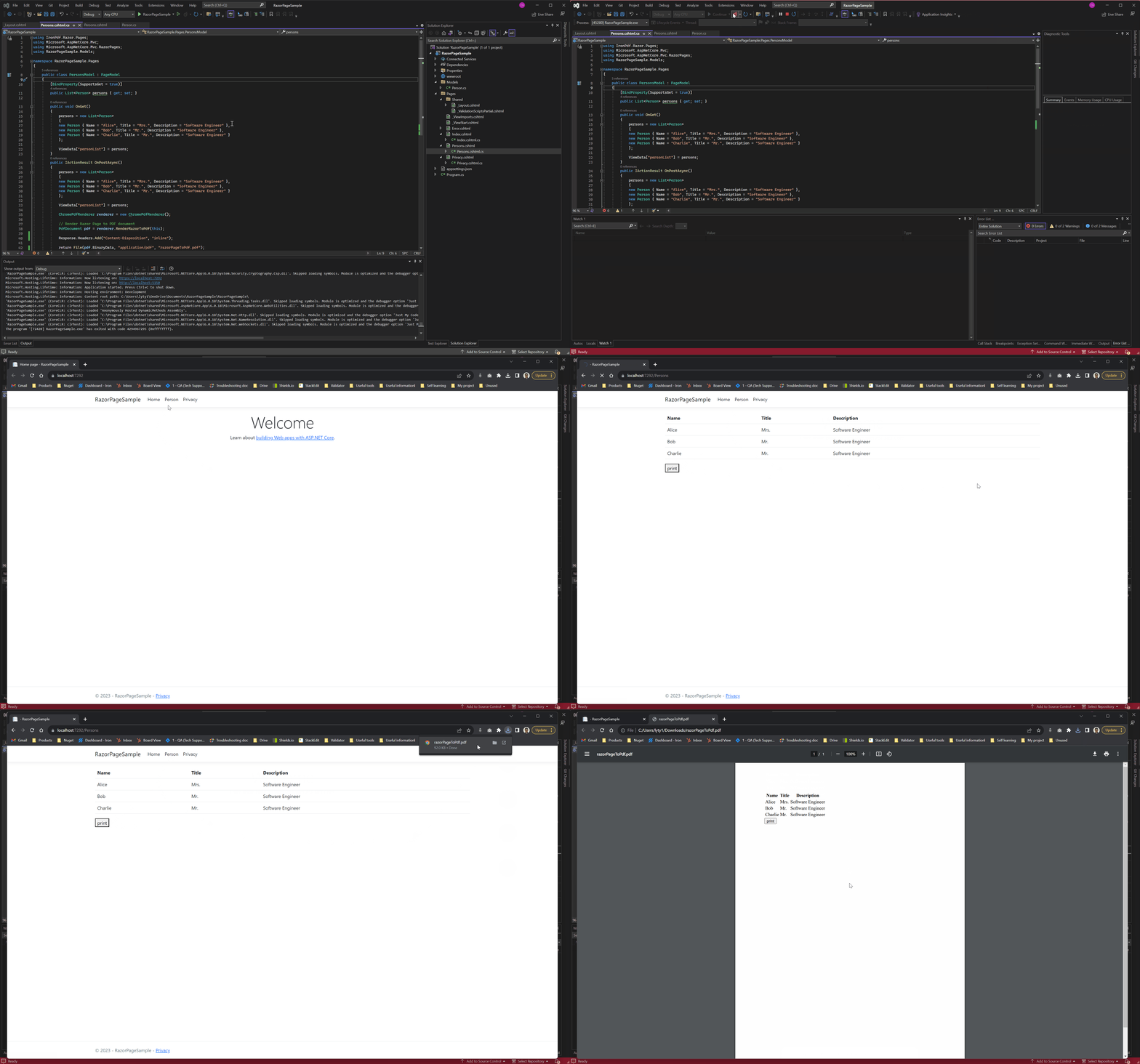
下載ASP.NET Core Web應用程式專案
您可以下載本指南的完整代碼作為壓縮文件,您可以在Visual Studio中作為ASP.NET Core Web應用程式專案打開它。
常見問題解答
ASP.NET Core 中的 Razor Pages 是用來做什麼的?
Razor Pages 在 ASP.NET Core 中用於組織 Web 應用程式的程式碼,使開發人員能夠有效率地將 C# 和 HTML 結合起來建立 Web 內容。
如何在 C# 中將 Razor Pages 轉換為 PDF 文件?
您可以使用 IronPDF 的RenderRazorToPdf方法將 Razor Pages 轉換為 C# 中的 PDF 文檔,該方法利用 ChromePdfRenderer 類別從 CSHTML 文件產生 PDF。
將 Razor Pages 渲染成 PDF 時,哪些 NuGet 套件是必不可少的?
將 Razor Pages 渲染為 PDF 的基本 NuGet 套件是 IronPdf 和 IronPdf.Extensions.Razor。
如何在 ASP.NET Core 中安裝 PDF 轉換所需的必要軟體包?
您可以使用 NuGet 套件管理器透過以下命令安裝 PDF 轉換所需的套件: Install-Package IronPdf.Extensions.Razor 。
模型類別在將 Razor Pages 轉換為 PDF 的過程中扮演什麼角色?
模型類別(例如「Person」)定義了應用程式的資料結構,有助於組織顯示在 Razor 頁面上的信息,這些資訊將轉換為 PDF。
將 Razor Pages 渲染成 PDF 文件使用什麼方法?
RenderRazorToPdf方法用於將 Razor 頁面渲染為 PDF 文檔,它利用了 IronPDF 的 ChromePdfRenderer 類別。
轉換 Razor Pages 時,能否提升 PDF 輸出品質?
是的,IronPDF 允許您使用 RenderingOptions 來增強 PDF 輸出,例如新增頁碼、自訂邊距以及 HTML 頁首和頁尾等功能。
使用 IronPDF 產生 PDF 時有哪些進階功能?
IronPDF 的高級功能包括匯出為 PDFA 或 PDFUA、新增數位簽章、合併或分割 PDF、旋轉頁面以及套用自訂浮水印。
在哪裡可以找到完整的 ASP.NET Core Web 應用程式項目,用於練習 Razor 頁面到 PDF 的轉換?
完整的 ASP.NET Core Web App 專案(用於練習 Razor 頁面到 PDF 的轉換)可以從提供的連結下載為壓縮文件,即可在 Visual Studio 中使用。
IronPDF 將 CSHTML 或 Razor 視圖轉換為 PDF 時是否相容於 .NET 10?
是的。 IronPDF 完全相容於 .NET 10,可將 CSHTML/Razor 視圖轉換為 PDF。您的專案無需額外配置即可面向 .NET 10—— RenderRazorToPdf 、 ChromePdfRenderer和非同步 PDF 生成等功能均可正常運作。































